Apps to Project Cell Phone Screen on the Wall
 Put Ricardo Sanches
The phone itself doesn't project images onto the wall: it doesn't have a lens or lamp for that, and no app changes that hardware. The projector is what projects the image. The app's role is to send the phone's screen to the projector, wirelessly or via cable, and then photos, videos, and presentations end up on the wall in cinematic size. Below are the apps and features that make this connection on Android and iPhone.
How to Download and Install Apps to Project Your Cell Phone Screen on the wall
Before installing anything, check the projector. If it has Wi-Fi with Chromecast, Miracast, or AirPlay, the connection is wireless. If it only has an HDMI input, you'll need to connect a Chromecast to it or use a USB-C to HDMI adapter on phones that accept video output via cable.
1. Google Home – For Chromecast Users
O Google Home This is the official Google app for setting up Chromecast and Google TV. With the Chromecast connected to the projector's HDMI input, you use this app to get the device ready and mirror your Android screen: videos, photos, and slideshows go directly to the wall.
It's free on Google Play and can also be used to control playback while the video is playing on the projector.
2. Screen Mirroring and Smart View – Already included in Android
Many Android phones have built-in screen mirroring, without requiring any downloads. Pull down the notification bar and look for the cast shortcut; on Samsung Galaxy devices, it's called Smart View. It works with projectors and TVs compatible with Miracast or with Chromecast built-in.
3. Screen Mirroring – The Path on iPhone
On iPhone, the feature is native: open Control Center and tap Screen Mirroring. It uses AirPlay, so the projector needs to be AirPlay compatible or have an Apple TV connected to it.
You can also connect via cable: iPhones with a USB-C connector can be plugged into a USB-C to HDMI adapter, and models with Lightning connectors use Apple's Lightning Digital AV Adapter.
4. HDMI Cable – No App and No Lag
When Wi-Fi gets in the way, a cable solves the problem. On Android phones with USB-C video output, a USB-C to HDMI adapter connects the device directly to the projector, without installing anything and without the delay of wireless transmission. Check your model's specifications to see if it supports video output before buying the adapter.
Features of Applications to Project Your Cell Phone Screen on the Wall
On the wall, the projector dictates the quality: brightness in lumens, resolution, and a dark environment. On the phone side, keep both devices on the same Wi-Fi network, rotate the screen horizontally for videos, and activate Do Not Disturb mode so no notifications appear during the presentation.
Conclusion
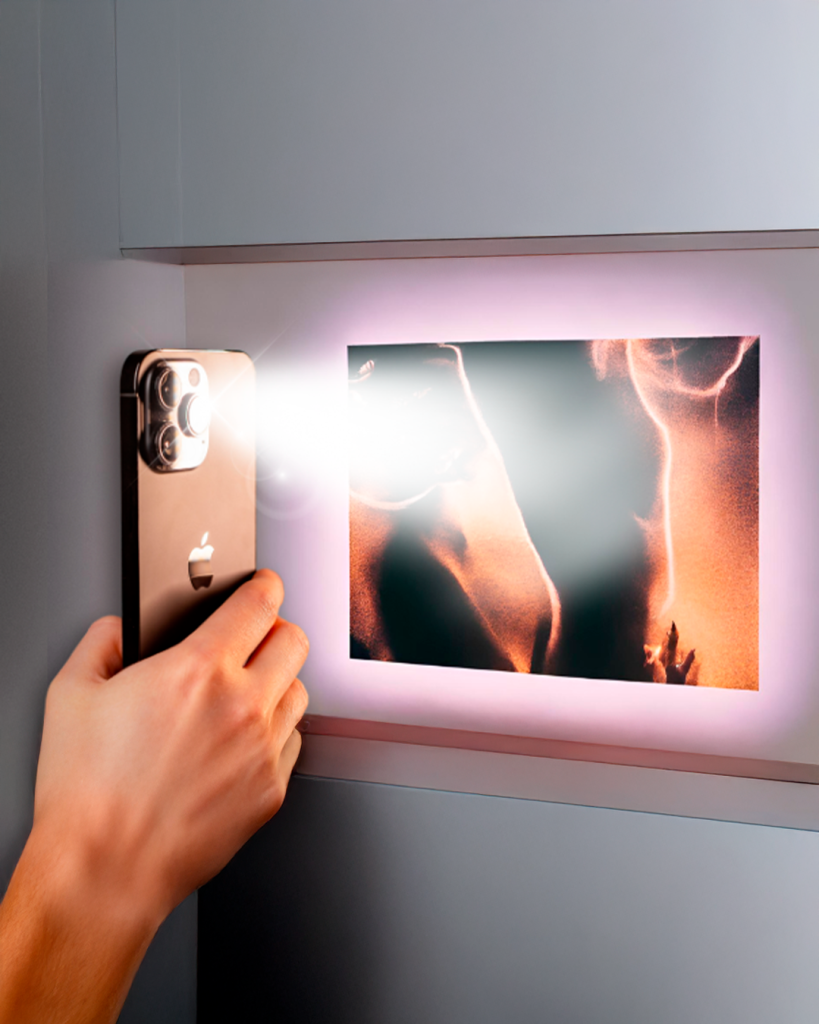
In short: the phone sends the image and the projector projects it. With Google Home and a Chromecast, the native mirroring of Android or iPhone, or an HDMI cable, the phone screen goes to the wall in a few minutes. An app that promises to turn your phone into a projector without any device doesn't deliver this: the screen's light doesn't form an image on the wall.