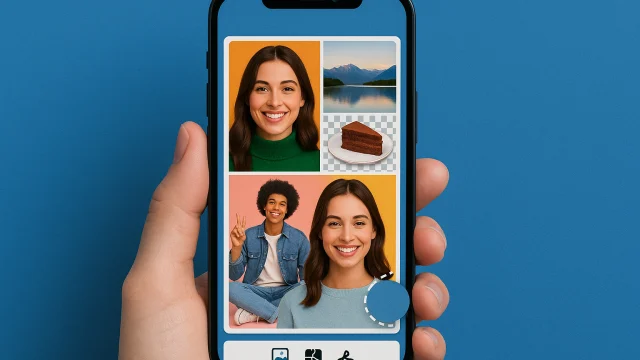
Apps for making photo collages: the 6 best for assembling your photos on your phone.
 Put Ricardo Sanches
Photo collages are the quickest way to tell a whole story in a single image: a trip, a birthday, a before-and-after, a baby's monthly milestone, a collection of dog photos. And today, this doesn't require a computer or editing software. With the right app, you choose the photos, tap on a template, and have a collage ready to send on WhatsApp, post on Instagram, or print in less than five minutes.
The problem is choosing from the hundreds of collage apps that appear in the store. Many are copies of each other, some fill the screen with ads, and others place a huge watermark on your photo at the end. This guide brings together the six that are worth downloading, explains what each one does best, shows the basic step-by-step process, and ends with tips to make a collage look beautiful instead of cluttered. All are available in the official app stores, with installation buttons for Android and iPhone throughout the text.
What a good collage app needs to have
Before installing anything, it's worth knowing what separates a good app from one that just takes up space. Five points determine almost everything:
- Real models and grids. You need grids for 2, 3, 4, 6, and 9 photos, as well as templates with one large photo and several small ones. Grids that only divide the screen into equal squares get boring quickly.
- Control edges and corners. Adjusting the border thickness, rounding the corners, and changing the background color is what transforms any old collage into a professional-looking one.
- High-resolution export. If the app saves the collage as a small file, it will appear pixelated when printed or enlarged. Look for the option to export in high resolution or "original" resolution.
- No hidden watermark. Some apps only show the watermark after the collage is complete. Test an export before putting effort into the final assembly.
- Sizes ready for social media. Instagram feed (square or 4:5), Stories (9:16), and WhatsApp cover photos have different aspect ratios. A good app can change the format without you having to crop everything again.
All six apps below meet these five criteria. The difference lies in their style: some are simple and straightforward, while others are full-fledged editors where collage is just one of the tools.
1. Canva: ready-made templates for any occasion
Canva is the world's most popular design app, and photo collage is one of the things it does best. The advantage lies in its library: thousands of pre-made collage templates with defined backgrounds, typography, and composition. You choose a template, drag your photos into the spaces, and you're done. For those who don't want to think about layout, it's the quickest way to achieve a beautiful result.

Thousands of ready-made collage templates, with text and graphic elements.
What sets Canva apart from traditional collage apps is that it treats collage creation as a complete design process. You can add titles with beautiful fonts, icons, frames, shapes, and even animation to post as a video. You can also resize the same collage for feed, Stories, Facebook cover, or A4 print with a single tap, without having to redo anything.
In the free version you already have grids, templates, and a huge number of elements. Items marked with a crown belong to the Pro plan, as do the background remover and some fonts. If you only use the free features, the collage will come out without a watermark. Another strong point: the project is saved to your account, so you can start the collage on your phone and finish it on your computer via the browser, or vice versa.
Who it's for: For those who want results that look like they're being pre-designed, with text and embellishments, without learning any tools at all. Point of attention: The app is resource-intensive and has more features than most people will use; if you just want to combine four photos into a grid, the next ones on the list are faster.
2. PicCollage: the classic of collages, with a free style.
PicCollage has been in stores for over a decade and remains the go-to app when it comes to mobile collages. It has the two modes that matter: grid, for organized assemblies, and the freestyle, In this app, you place photos on the screen, rotate them, overlap them, and stick stickers on them, just like creating a real mural.

Grids, freestyle, stickers, and backgrounds. The most popular collage app.
The free mode is what makes PicCollage so popular for birthday cards, wedding murals, and tributes: you combine photos with patterned backgrounds, colorful text, cutouts, and stickers, at your own pace. The cutout tool allows you to remove a person from the background and paste them into another photo, an effect that works very well for celebratory occasions. The app also creates collages with short videos, something few competitors do well.
The free version unlocks the grids, basic templates, and freestyle options. Exports include a discreet watermark in the corner; those who want a clean collage and all sticker packs subscribe to the paid plan. Even so, for personal use, the free version works well.
Who it's for: For those who enjoy creating creative collages with overlays, stickers, and text, without being confined to a grid. Point of attention: The watermark is on the free plan.
3. Google Photos: the collage you already have on your phone.
Many people install three apps without realizing that Google Photos, which comes pre-installed on most Android devices and is also available for iPhone, can create collages. The tool is intentionally simple: you choose 2 to 6 photos, the app creates the grid, and you can change the design and position of the photos in just a few taps. No ads, no watermarks, no need to install anything else.

Quick collage of up to 6 photos, no ads and no watermark.
To create, open the app, tap the button. to create (the plus sign) and choose Collage. You can also select the photos first, tap the plus icon, and choose Collage. Once assembled, you can tap each photo to adjust the framing, change the order, and choose from the available designs. Some of the more elaborate templates are exclusive to Google One subscribers, but the basic ones are free and get the job done.
The collage is saved directly to your library, along with your other photos, and is automatically backed up. To send it on WhatsApp or post it, simply share it like any other image.
Who it's for: For those who want a simple collage of just a few photos, right now, without installing anything. Point of attention: The app has a limit of 6 photos and lacks stickers and text. For larger or more decorated collages, use one of the other apps.
4. Picsart: collage within a complete editor
Picsart is one of the most downloaded photo editors in the world, and collage is one of the first options that appear on the home screen. It offers three formats: grid, freestyle and frame, In this app, photos are placed inside pre-made shapes and backgrounds. The library of stickers and backgrounds is gigantic, fueled by the app's own community.

Grid, freestyle and frames, with a complete photo editor all in one app.
The big difference is what happens after the collage. Since it becomes a project within the editor, you can apply filters, adjust light and color, write text with effects, cut out people using the artificial intelligence tool, and blend everything into a single composition. For those who create content for social media, it's an app that replaces several others.
Picsart is free with ads, and some of the templates, fonts, and stickers belong to the Gold plan. The free features are clearly identified, and you can create complete collages without paying anything.
Who it's for: For those who want to create collages and also edit photos in the same place, with filters and cropping. Point of attention: The number of ads and offers from the paid plan in the free version.
5. MOLDIV: hundreds of layouts and the magazine effect
MOLDIV is less famous than the previous ones, but those who try it usually stick around. The app is dedicated to collage and has hundreds of layouts, from the simplest to the most elaborate, with fine control over borders, rounded corners, shadows, and backgrounds. It's the kind of tool that appeals to those who like to adjust every detail.

Hundreds of layouts, magazine-style frames, and a mode that stitches photos together in sequence.
Two modes stand out. The Magazine He puts your photos on magazine covers and pages, with ready-made typography and composition, and the result is impressive, perfect for gifts and tributes. Stitch It stitches photos together into a vertical or horizontal strip, perfect for showing a sequence, a before-and-after, or a long screen conversation. The app also has filters and a camera with retouching to take the photo already in collage style.
It's free with in-app purchases: some layout and filter packs are paid, but the basic set is generous.
Who it's for: For those who want a variety of layouts and control over borders, shadows, and corners. Point of attention: Paid packages appear mixed in with the free ones when you're choosing.
6. Fotor: collage with AI-powered retouching
Fotor combines a traditional collage editor, with grids and a free template, with a suite of artificial intelligence tools to enhance photos before assembling them. If your images are dark, blurry, or have a messy background, the app corrects them with a tap and then assembles the collage.

Grid or free-form collage, with automatic photo enhancement by AI.
The collage itself is straightforward: choose the photos, the template, adjust borders and background, add text or stickers, and export. What makes it worth downloading are the extras: automatic quality enhancement, object removal, background replacement, and enlargement of small photos without losing sharpness—all useful for that old photo you want to include in the collage.
Fotor is a free app with ads and has a Pro plan that unlocks all AI features and removes ads. It also works in your computer's browser with the same account.
Who it's for: Who has photos that need fixing before pasting?. Point of attention: The most advanced AI tools have usage limits in the free version.
Quick comparison: which one to choose
| Application | Best for | Charge | Emphasis |
|---|---|---|---|
| Canva | Ready-made templates with text and design. | Free, with Pro plan | Resizes to any network |
| PicCollage | Creative collages in free style | Free with watermark, paid plan | Stickers, cutouts and video |
| Google Photos | Quick collage of a few photos | Free | It comes pre-installed on your phone, without ads. |
| Picsart | Collage plus full edition | Free with ads, Gold plan | AI-powered editor and cropping |
| MOLDIV | Many layouts and fine-tuning. | Free, with paid packages | Magazine and Stitch Modes |
| Fotor | Photos that need retouching | Free with ads, Pro plan | Automatic improvement by AI |
If you're unsure, the rule of thumb is this: for a quick and easy collage, use Google Photos; for a beautiful collage with text, use Canva; for a creative and decorated collage, use PicCollage. The other three come in handy when you want more control or need to edit the photos simultaneously.
How to make a photo collage on your phone, step by step.
The apps change the button names, but the path is the same in all of them. Follow this order and the collage will be correct the first time:
- Separate the photos before opening the app. Create an album or mark as favorites the images that will be included. Choosing in the middle of the collage makes you waste time scrolling through the gallery.
- Choose the final format first. Square for the feed, vertical (9:16) for Stories and WhatsApp status, horizontal for landscape printing. Setting this up at the beginning prevents cropping later.
- Select the model by the number of photos. With 3 photos, use a template with one large photo and two small ones. With 4, a 2x2 grid always works. With 6 or more, prefer templates that highlight one or two images.
- Position each photo within the space. Tap the photo, drag to frame, and use the pinch to zoom. Faces and the main subject are centered in each cell.
- Adjust the edges, corners, and background. A thin, white border goes with almost anything. A black background enhances dark and party photos. Rounded corners make the collage look lighter.
- Add text only if it says something. One date, one name, one place. Long sentences and multiple different fonts clutter the design.
- Export at the highest available resolution. Look for the “high”, “HD” or “original” option when saving. Then share it from the gallery.
Tips for making your collage look beautiful
The difference between a collage that looks professionally done and one that looks like a mess lies in a few details. These are the ones that matter most:
- Fewer photos, more impact. Four good photos tell a better story than twelve small ones. If you need to show many, make two collages.
- Keep the same color palette. Photos taken in the same place and under the same lighting naturally combine well. If the colors clash, apply the same filter to all of them before combining them.
- Choose a photo to be the star. Patterns with one large image and others smaller guide the eye. Grids with everything the same size become monotonous.
- Align the direction of their gazes. People looking into the collage, rather than outward, make the composition feel closed and pleasing.
- Don't stretch the photos. If the cell is vertical and the photo is horizontal, crop the photo or move the cell. A stretched image is the easiest error to spot.
- Be careful with the resolution of old photos. A low-quality photo looks even worse when enlarged. Store these in small cells or use an image enhancement app like Fotor first.
- Adhesive is seasoning, not a dish. One or two graphic elements help; ten hide the photos.
Collage ideas to use today
If you've installed the app and don't know where to start, these ideas always work:
- Before and after. Two photos side by side, with a thin line in between. This is useful for photo editing, weight loss, haircuts, and plants that have grown. The Stitch mode in MOLDIV was designed for this purpose.
- A journey in a single image. One large photo of the main landscape and four smaller photos capturing different moments. Add the city name and year.
- Month by month. Twelve photos, one per month, in a 3x4 grid. It's the classic collage of babies, couples, and pets, and it looks beautiful printed.
- Birthday tribute. Free-style photos of various stages of a person's life, with a patterned background and a short caption. PicCollage and Canva have ready-made templates for this.
- Today's menu or recipe. A photo of the ingredients, the preparation, and the finished dish, in sequence. Works really well for Stories.
- Album cover. A collage with the best photos from the event becomes the cover of the shared album on Google Photos or in the family group chat.
Common mistakes that ruin the gluing process.
Some common mistakes are repeated in almost every beginner's collage. Avoid these five:
- Export in small size. The collage looks good on a phone screen but looks terrible on TV or in print. Always save at the highest resolution.
- Cut out faces at the cell border. Before saving, check each photo: forehead, chin, and ears within the frame.
- Mix vertical and horizontal photos in the same grid. Choose a template that respects the orientation of each photo, or you'll have to crop too much.
- Use multiple sources. One font, two sizes maximum.
- Forget the watermark. Do a test export at the beginning. Discovering the brand only after an hour of assembly is frustrating.
Frequently Asked Questions
What is the best free photo collage app?
For quick collages, Google Photos is a great option: it comes standard on Android, is available for iPhone, and has no ads or watermarks. For collages with text and design, the free version of Canva delivers the best results without paying.
Is it possible to create collages without installing anything?
On Android, yes, with Google Photos, which usually comes pre-installed. On iPhone, Apple's Photos app doesn't create collages, so you need to install one of the apps from this guide; Google Photos is the lightest option.
Does the collage lose quality?
You'll lose quality if you export at low resolution or enlarge photos that are too small. Always save at the highest resolution the app offers and avoid zooming in too much on low-quality photos.
How do I make a collage with more than 10 photos?
Canva, PicCollage, Picsart, and MOLDIV accept more than ten photos, both in grid and freestyle formats. Google Photos limits it to 6. For very large collages, split them into two collages or use freestyle mode and reduce the size of each photo.
How to make collages for Instagram and Stories?
Choose the format before assembling: square or 4:5 for the feed, 9:16 for Stories. Canva, PicCollage, and Picsart have these sizes ready. In Instagram Stories itself, you can also paste multiple photos using the image sticker, but without grids or borders.
Is it possible to create a collage using video?
Yes. PicCollage, Canva, and Picsart create collages with short videos alongside photos and export them as videos. Keep the clips short, just a few seconds, so the file doesn't become too large.
Summary
You don't need more than one collage app. If you want speed, Google Photos, which is already on your phone, will do the trick. If you want a design-looking collage, Canva has a ready-made template. If you want creative freedom, PicCollage is the classic. Picsart, MOLDIV, and Fotor come in handy when you need complete editing, more layouts, or photo retouching before assembling. Install one of them using the buttons above, select your photos, choose the format, and follow the step-by-step instructions: in a few minutes, your collage will be ready to share.